Figma Review: The Design Tool That Turned Solo Work Into Real-Time Collaboration
Figma Review: A Strong Design Workspace—If You Buy the Right Seats
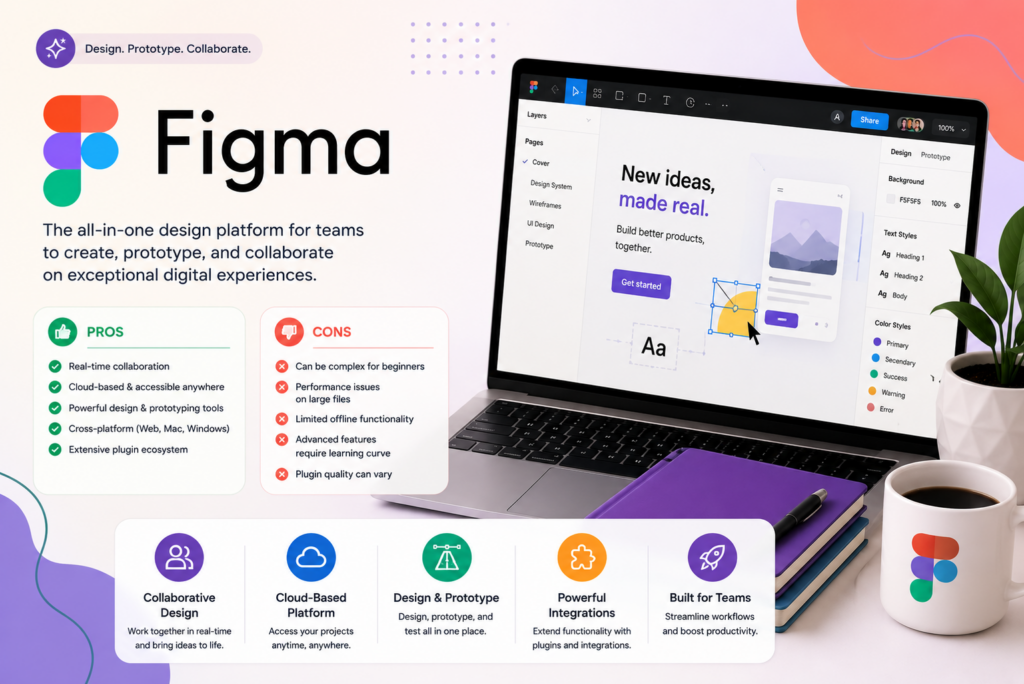
Figma is a strong choice for a small business that regularly designs websites, apps, or digital products with input from several people. Designers can develop the interface, stakeholders can review it, and developers can work from the same source instead of piecing together screenshots and email feedback.
Its value comes from continuity: an idea can become a reusable interface, an interactive prototype, and a documented handoff. Figma Design supports collaborative interface design, with tools for layout, components, and shared design work. Source: Figma Design.
But the broader Figma platform now covers more than interface design, and buying access requires understanding both plans and seat types. A business owner approving a homepage does not need the same paid access as the designer building it.
Our recommendation: Figma Professional is the most sensible paid starting point for a small team doing recurring interface design. Assign paid seats by actual work, and keep review-only participants on free View access. If most of your output is social posts, flyers, or a straightforward business website, compare tools built around those deliverables before committing.
How this review was prepared: AppFinderX reviewed Figma’s official product pages, plan documentation, billing rules, AI allowances, and integrations. This is a research-based evaluation, not a hands-on test. Cost examples and workflow recommendations are our analysis; we did not benchmark performance or measure productivity gains.
Figma pays off when an interface needs repeated revision
A first draft is only part of design work. The more revealing question is what happens when someone changes the navigation, adds a pricing tier, or asks for longer button labels across multiple screens.
Figma’s auto layout controls how elements are arranged and how they respond as their content changes. Components and variants support reusable interface elements with different configurations. Sources: Figma’s auto layout guide, components and variants.
For a small software business, a reusable button can represent several states: default, disabled, or loading. A pricing card can adapt when its feature list grows. These are proposed applications of the documented tools, not observations from our testing.
The business benefit is consistency through revision. When a product contains repeated patterns, defining those patterns deliberately can reduce the number of independent design decisions someone must revisit.
There is an initial cost, though. Creating sensible components takes more thought than duplicating a finished screen. Someone has to decide which properties should remain consistent and which should vary.
That investment makes sense when the same interface will evolve or several people will maintain it. It can be excessive for a single disposable graphic. Figma’s precision is valuable when the work needs it; otherwise, it becomes extra setup.
For a practical evaluation, build a small page with a navigation bar, three cards, and a form. Then change the text lengths and reduce the available width. If you can make those changes cleanly without repairing every element by hand, you are beginning to use the features that justify Figma.
Prototypes are for resolving questions before development
Figma’s prototyping tools let designers connect screens and model interactions so people can explore a proposed experience. Source: Figma prototyping.
The most useful prototype is not necessarily the one with the most animation. It is the one that answers a business question before the team spends time implementing the wrong approach.
For example, a booking business could prototype how a customer selects a service, chooses an appointment, and confirms the request. Ask a reviewer to complete that task without explaining the intended path. Where they hesitate can reveal unclear labels, missing information, or a step that appears in the wrong place.
That exercise should also include an exception. What happens when no appointment is available? Where does the customer go after entering an invalid email address? A polished successful path can hide the most important omissions.
Keep the scope small enough to revise. A three-screen prototype built around one uncertain decision may be more useful than a complete visual replica of an unvalidated product.
The limitation is that an interactive design does not establish that the eventual application works correctly. Data persistence, permissions, payment behavior, accessibility, and real device performance require evaluation in the implemented product. Use the prototype to test the proposed experience, and plan separately for engineering and quality assurance.
Figma Design, Sites, and Make do different jobs
Figma’s expanding product lineup makes older descriptions of it as only a mockup tool incomplete. It also creates room for confusion about what a subscription actually helps you deliver.
| Product | Main purpose | Buying implication |
|---|---|---|
| Figma Design | Interface design and prototyping | Best starting point for detailed product design |
| FigJam | Collaborative whiteboarding | Useful for workshops and early planning |
| Figma Sites | Designing and publishing websites | Assess publishing requirements before choosing it for a live site |
| Figma Make | AI-assisted creation of functional prototypes and web apps | Evaluate the generated behavior as well as its appearance |
These roles are described on Figma’s official Design, FigJam, Sites, and Make pages.
For a business already running a WordPress site, designing a replacement page in Figma does not automatically update the live website. Agree on the implementation destination before starting: an existing content management system, a Figma Sites website, or a separately developed application.
Figma Sites can publish websites, and its help documentation currently requires a paid plan for publishing. However, some official domain documentation still refers to free custom-domain terms through 2025. Those dated terms do not establish a current hosting budget. Confirm present domain, bandwidth, and publishing terms before committing a client project. Sources: Figma Sites publishing, custom-domain documentation.
Figma Make is worth evaluating when an interactive idea needs more behavior than a conventional screen-to-screen prototype. Define a specific acceptance test—for example, whether a form rejects invalid input and preserves valid input—rather than judging the output only by its visual finish.
Buy seats for the work people actually do
Figma assigns a seat type to each user on a paid plan. That seat controls product access; it does not replace the separate permissions determining which files the person can open or edit. Source: Figma seat management.
| Seat | Who should consider it | Key distinction |
|---|---|---|
| Full | Designers and people authoring across Figma’s suite | Includes Figma Design editing and Dev Mode |
| Dev | Developers who need advanced handoff tools | Includes Dev Mode, without Design editing |
| Collab | People actively creating in FigJam or Slides | Useful for collaboration authoring, not required merely to comment |
| View | Clients, managers, and other reviewers | Free viewing and commenting on permitted files |
This table focuses on the access differences relevant to buying decisions, rather than listing every included product. Source: Figma’s seat explanations.
A paid Collab seat is not necessary simply to leave feedback on a design. Start with View access for someone whose job is approval or commentary. Upgrade when they need capabilities that their existing access does not provide.
Likewise, a developer should not automatically receive a Full seat. Identify whether they need Design editing, advanced Dev Mode, or only occasional inspection. A job title alone is not a sufficient reason to buy a particular seat.
For agencies, explain this distinction during client onboarding. “Can you review this?” and “Can you edit the source design?” are different requests with different access implications.
Figma pricing: a five-person team does not need five Full seats
Pricing checked: September 2026. USD. The paid rates below are per seat, per month, billed annually; taxes and add-ons are excluded.
| Plan | Full seat | Dev seat | Collab seat |
|---|---|---|---|
| Starter | Free, limited access | — | — |
| Professional | $16 | $12 | $3 |
| Organization | $55 | $25 | $5 |
| Enterprise | $90 | $35 | $5 |
Professional also offers monthly billing. Organization and Enterprise are billed annually. Free View access is available on paid plans. Source: Figma pricing.
Consider a five-person team with two designers, one developer who needs Dev Mode, one project manager who creates FigJam boards, and one owner who reviews designs.
| Assignment on Professional | Monthly equivalent | Annual cost |
|---|---|---|
| Two Full seats | $32 | $384 |
| One Dev seat | $12 | $144 |
| One Collab seat | $3 | $36 |
| One View seat | $0 | $0 |
| Total | $47 | $564 |
Five Full seats would cost $960 annually. The mixed arrangement saves $396 per year, assuming the people in this example need only the access described. If the project manager only reviews files, that role could also remain on View access.
Professional includes unlimited files and folders, team design libraries, and advanced developer inspection. These are practical reasons to upgrade once design becomes regular team work. Source: Figma Professional.
The higher tiers should solve an organizational requirement. Buying Organization merely because the business has employees is not a compelling reason to accept its larger seat cost. Identify the specific administration, shared-resource, or governance feature required first.
Watch how additional seats are billed
On an annual Professional subscription, extra paid seats added during the term can create a separate monthly subscription at monthly rates. Figma says those seats continue on monthly invoices unless you add them to the annual subscription or remove them. Source: Professional billing documentation.
That flexibility can be useful for a short-term contractor. It also means the billing cadence of your original seats does not necessarily apply to every later addition. Review seat assignments and subscriptions together when the team changes.
The free plan is useful, but drafts are not an unlimited team workspace
Starter includes unlimited drafts, but its shared folder has limits: three Figma Design and Sites files combined, three FigJam files, and three Slides files. Draft collaborators can be invited with viewing access; editing collaboration in drafts requires a paid plan. Source: Starter plan overview.
This makes Starter a reasonable place to learn the editor, explore a personal project, or assess a limited collaborative workflow. It is less suitable as the permanent filing system for an agency with many active projects.
The upgrade trigger is not simply how many screens you can squeeze into one file. It is whether the team can organize, share, and maintain its work without awkward workarounds.
Combining unrelated client work into a single oversized file to avoid a limit can make permissions and navigation harder to manage. Treat the free plan as a way to validate the workflow; pay when the organizational requirements become part of doing professional work reliably.
Dev Mode and integrations: make the handoff usable
Dev Mode is intended to connect design with implementation. Figma documents tools for developer inspection and links from design layers to resources such as GitHub files, Jira tickets, and Storybook stories. Source: Figma Dev Mode.
Its value depends on the quality of the source design. A developer still needs to understand which screens are approved, what the components mean, and how the interface behaves outside the happy path.
Before handoff, identify the approved flow and document loading, empty, error, and success states. Distinguish placeholder copy from approved content. These decisions are often more consequential than another round of visual polish.
Basic inspection remains possible without paid Dev Mode: Figma says free viewers can inspect measurements and properties, copy platform code snippets, and export assets. Source: Figma pricing FAQ on inspection.
Integrations worth considering
- Jira — attach designs to issues and connect implementation work with its visual context. Figma’s Jira documentation also describes linking issues to pages or layers and creating issues from Figma. Source: Jira and Figma.
- Slack — receive file notifications where the team communicates.
- Notion — embed designs beside briefs, decisions, and project documentation.
- Asana — embed Figma files in projects to keep design references close to assigned work.
- Microsoft Teams — bring Figma files into meetings, chats, or channels.
The latter connections are listed in Figma’s official integration directory.
An embed is not the same thing as task synchronization. Choose an integration for the actual handoff you need, and keep one authoritative place for delivery status. A design comment should not become an untracked substitute for an assigned engineering task.
AI credits add another budgeting layer
Figma AI usage draws on credits across its AI features and products. A Professional Full seat includes 3,000 monthly credits; Organization Full seats include 3,500 and Enterprise Full seats include 4,250. Allowances vary by seat and plan. Source: Figma pricing.
Included credits are not a promise of a fixed number of finished designs. AI actions can have different costs, credits expire rather than rolling over, and undoing an action does not refund its usage. Source: How Figma AI credits work.
Admins can purchase additional credits through subscriptions or pay-as-you-go billing. Source: Managing AI credits.
For a small business, test one representative assignment before assuming the included allowance is sufficient. Record how many revisions are needed and how much manual correction follows generation. A fast first result can still require substantial work before it fits the product.
AI is most useful when the team can judge the result. If nobody can explain why a generated interface is appropriate, more generation may produce options without improving the decision.
Alternatives and recommendations
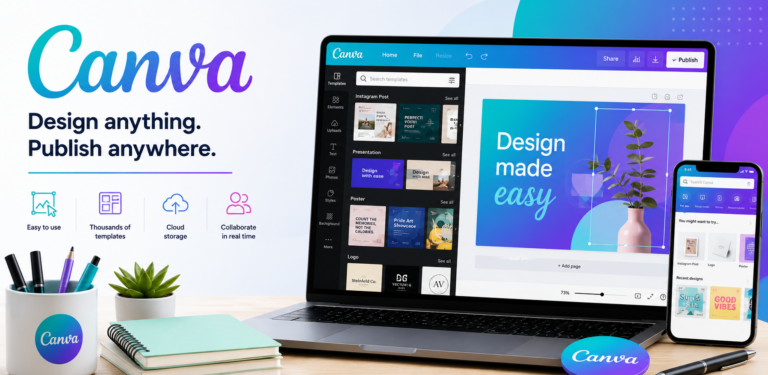
Choose Canva if your main output is everyday marketing content. Canva’s template-based workflows cover social posts, presentations, and other visual materials. For an owner producing recurring promotional assets without a dedicated interface designer, it is the first alternative we would evaluate. Source: Canva’s visual content platform.
Choose Framer if your primary deliverable is a published marketing website. Framer combines visual editing with hosting, CMS, and SEO tools. Compare its publishing workflow with Figma Sites using a real page and your actual content requirements. Source: Framer.
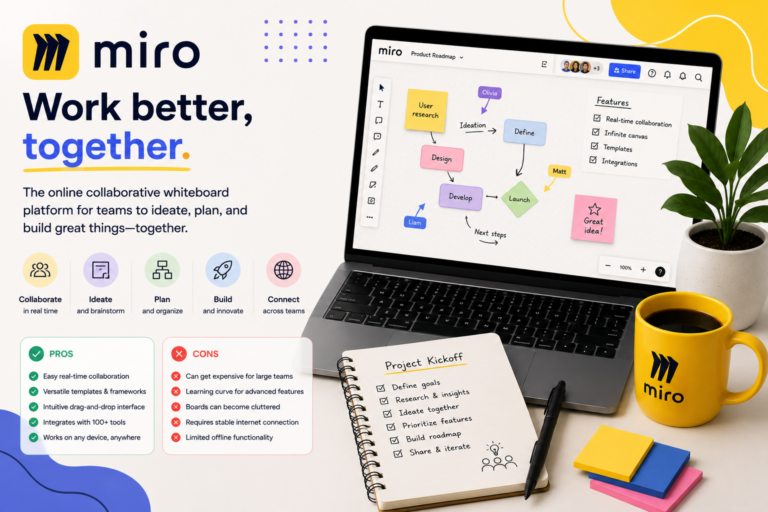
Choose Miro if the main job is facilitating visual workshops across a business. Miro emphasizes shared canvases, diagramming, and collaborative planning. Evaluate it against FigJam when workshop structure matters more than detailed interface design. Source: Miro.
Choose Figma if your team needs a shared place to develop and revise digital interfaces, validate flows, and prepare designs for implementation. Its strongest advantage is the connection between reusable design work and collaboration throughout the product process.
The main compromise is the discipline required to get that benefit. Components need structure, feedback needs decisions, handoffs need context, and seats need oversight. Figma provides the tools, but someone still has to establish the working practices.
For a small design or product team, Professional is a strong starting point. For the common poor-fit buyer—the business owner mainly creating promotional graphics—Canva is the more relevant first comparison. For someone who only needs to approve an agency’s work, a free View seat may be all that is necessary.