

How to Set Up Pipedrive for a Small Sales Team
Most small sales teams don’t fail at Pipedrive because the software is complicated — they fail because they start clicking around before they’ve actually decided what their sales process looks like. Pipedrive is genuinely one of the easier CRMs to get running, but “easy” doesn’t mean “set up correctly on the first try.” This guide walks through getting a small team (think two to ten reps, or a founder plus a couple of hires) from a blank Pipedrive account to a system people actually use, in the order that avoids the most common rework later.
If you haven’t picked a CRM yet, it’s worth reading AppFinderX’s full Pipedrive review first to make sure it’s actually the right fit before you build a whole process around it.
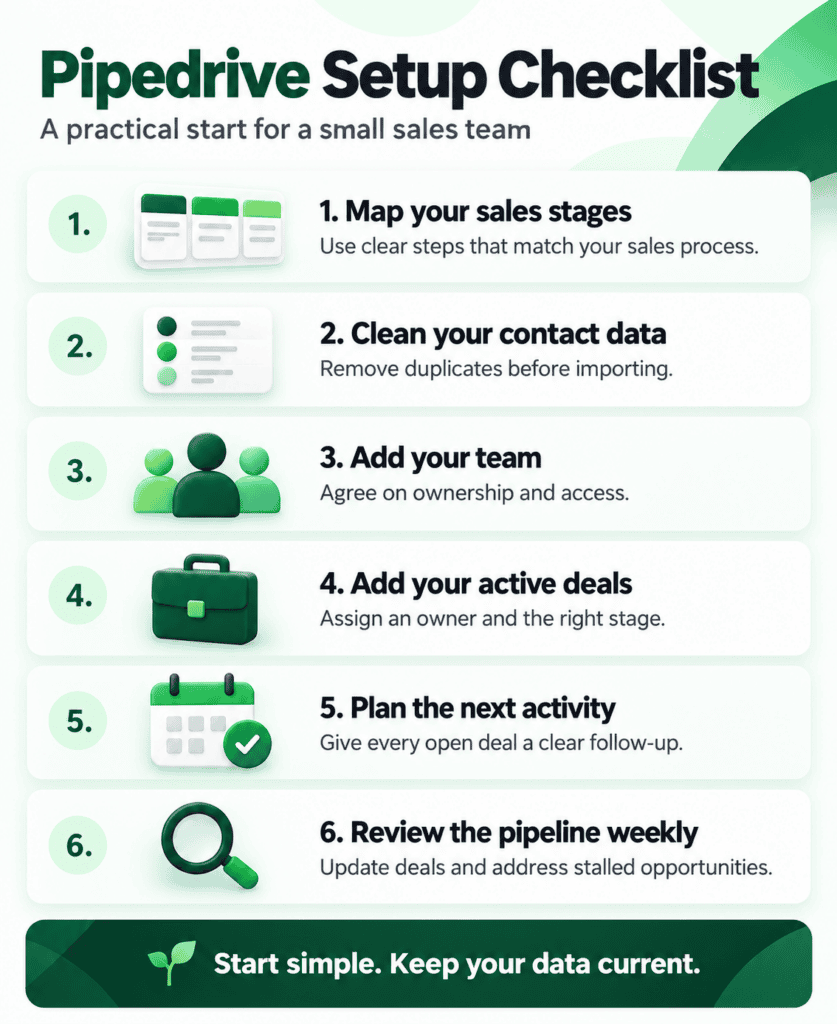
Map Your Sales Process Before You Open the App
This is the step people skip, and it’s the one that causes the most pain six months in. Before you create a single pipeline stage in Pipedrive, write down — on paper, in a doc, wherever — the actual stages a deal moves through at your business, from first contact to closed-won. Not the stages you think you should have. The ones that actually happen.
For most small B2B teams, that looks something like: new lead, qualified, meeting scheduled, proposal sent, negotiation, closed-won or closed-lost. Yours might be different, and that’s fine — the point is that this list, not Pipedrive’s default template, is what you’re about to build. A pipeline with stages nobody agrees on is the single most common reason a small team abandons a CRM within the first few months.
Set Up Your Pipeline (or Pipelines)
Once you know your stages, go into Pipedrive’s pipeline settings and replace the default stages with your own. This is also the moment to decide whether you need more than one pipeline. A single pipeline is the right call for most small teams selling one kind of thing to one kind of buyer. But if you’re running two genuinely different sales motions — say, new business versus renewals, or product A versus a services offering — a second pipeline keeps those processes from contaminating each other’s stages and reporting. Resist the urge to build five pipelines on day one; you can always add a second one later once you’ve actually felt the need for it.
While you’re in here, set a rotting deal threshold for each stage — the number of days a deal can sit untouched before Pipedrive flags it. This single setting does more to prevent deals quietly dying in the pipeline than almost anything else you’ll configure.
Bring Your Existing Contacts and Deals In
If you’re coming from spreadsheets, Pipedrive’s import tool handles CSV files reasonably well, but the quality of the import depends entirely on how clean your source data is going in. Before you upload anything, do a pass through your spreadsheet: make sure company names are spelled consistently, email addresses are actually valid, and you’re not importing the same contact three times under slightly different names. Pipedrive’s own import documentation walks through the exact column-matching process, but the real work happens before you ever open that screen.
If you’re migrating from another CRM instead, check whether Pipedrive has a direct migration path for that specific platform — for well-known systems it often does, and it’ll save you from a manual CSV export entirely. Either way, do a small test import first — ten or twenty records — before you commit your whole database. It’s much easier to fix a mapping mistake on twenty records than to untangle it after importing two thousand.
Add the Custom Fields You’ll Actually Use
Pipedrive comes with standard fields — deal value, expected close date, contact info — but almost every business needs at least a few custom fields to track something specific to how they sell. Maybe that’s a lead source field, a product line, or a field for which rep originally sourced the deal. Add these now, while you’re still setting up, rather than retrofitting them after fifty deals already exist without that data.
The failure mode to avoid here is the opposite problem: adding fifteen custom fields because they all seemed potentially useful. Every field you add is one more thing a rep has to fill in — and the fields that don’t get filled in consistently become dead weight in your reports later. Start with the three or four fields that answer questions you actually ask in a sales meeting, and add more only when you notice yourself wanting data you don’t have.
Connect Your Email and Set Up Activities
Pipedrive’s email sync is worth setting up for every rep on day one — it pulls email conversations directly into the deal timeline, so there’s a record of what’s actually been said without anyone manually logging it. Connect this through Pipedrive’s settings under Email sync, using whichever email provider your team already runs on.
Then set up Activities — Pipedrive’s built-in task and follow-up system — as the default way reps track next steps, rather than letting that live in someone’s personal notebook or a separate to-do app. The habit worth building from week one: no deal moves forward without a scheduled next activity attached to it. A deal sitting in a pipeline stage with no next step scheduled is, in practice, a deal nobody’s actually working.
Build a Small Number of Automations
Pipedrive’s Workflow Automation feature lets you trigger actions automatically — move a deal to a new stage and it creates a follow-up task, or send an internal notification when a deal crosses a certain value. For a small team, the instinct to automate everything immediately usually backfires, because automations built before you understand your actual process end up encoding bad habits permanently.
Start with one or two automations that solve a problem you’ve already noticed: maybe auto-creating a follow-up activity whenever a deal moves into “Proposal Sent,” so nothing goes quiet after you send a quote. Add more only once that first one is clearly working and the team trusts it. An automation nobody understands is worse than no automation at all, because it starts making changes to the pipeline that look like they happened on their own.
Add Your Team and Set Permissions Thoughtfully
When you invite the rest of the team, resist the default instinct to give everyone full visibility into everything. Pipedrive’s visibility groups let you control who sees which deals, which matters more than it sounds like once you have more than a couple of reps — a rep seeing every other rep’s pipeline can create exactly the kind of internal competition or confusion you don’t want, depending on how your team actually operates. Decide upfront whether reps should see only their own deals, their team’s deals, or everything, and set that intentionally rather than leaving it at whatever the default happens to be.
This is also the point to decide who has admin rights to change pipeline stages, fields, and automations. For a small team, that’s often just one person — usually a sales lead or the founder — rather than something every rep can tinker with independently.
Set Up a Dashboard You’ll Actually Check
Pipedrive’s reporting and Insights dashboards can show a lot, which means it’s easy to build something nobody looks at after the first week. For a small team, three numbers usually matter more than a dozen: total pipeline value, deals won this month against a target, and average time a deal spends in each stage. Build a simple dashboard around those first, and treat anything more elaborate as something to add once the basics are being checked regularly — a dashboard that isn’t part of a weekly habit isn’t doing its job no matter how good it looks.
Build a Few Email Templates Before You Need Them
Pipedrive lets you save email templates with placeholders that pull in deal and contact details automatically, and setting a handful of these up during initial configuration saves real time once reps are actually working deals. The ones worth building first are the ones every rep sends repeatedly anyway: an initial outreach message, a meeting confirmation, a proposal follow-up, and a check-in for a deal that’s gone quiet. Writing these once, as a team, also has a quieter benefit — it forces an actual conversation about what your sales messaging should sound like, rather than letting five reps independently improvise five different versions of the same email.
Don’t try to template every possible scenario. A template for a situation that comes up twice a year isn’t worth the setup time, and an overstuffed template library becomes just as hard to navigate as having no templates at all. Four or five solid templates, refined over the first month of actual use, beats twenty written in a single afternoon and never revisited.
Plan the First Week as a Team, Not Just a Rollout
A CRM rollout succeeds or fails largely in the first five to ten working days, and that period deserves more intention than just sending everyone a login link. Walk the team through the pipeline stages together and explain the reasoning behind each one — not just what the stage is called, but what has to be true about a deal for it to sit there. Agree explicitly on what “logging activity” actually means day to day: does every call get a note, or just substantive ones? Does a deal move stages the moment a meeting is scheduled, or only once it’s confirmed?
These might feel like small questions, but unresolved disagreements about them are exactly what causes a pipeline to become unreliable within a month — one rep logging everything meticulously while another updates their deals once a week makes your reporting worthless regardless of how well the system itself is configured. A short, explicit conversation in week one prevents most of this.
Common Setup Mistakes Worth Avoiding
A few patterns show up often enough with new Pipedrive teams to call out directly. Copying a generic pipeline template instead of mapping your own actual process is the big one — it feels faster at the start and costs more time later when half the stages don’t match reality. Importing messy contact data and trying to clean it up inside Pipedrive afterward is another; it’s almost always easier to clean a spreadsheet than to clean a CRM. And building automations before the team has used the manual process long enough to know what’s actually repetitive tends to encode workarounds for problems that would have been better solved by fixing the process itself.
What to Add Once the Basics Are Working
Once your team has lived with the core setup for a month or so, a few additions tend to pay off: connecting QuickBooks if invoicing is currently a manual step after a deal closes, or layering in a cold outreach tool — our Lemlist vs. Instantly.ai comparison is a good next read if outbound prospecting is about to become a bigger part of how deals enter your pipeline in the first place. Pipedrive also connects to most of the broader marketing stack through native integrations or Zapier, which is worth exploring once your core sales process is running smoothly rather than before.
If, after actually using Pipedrive for a few months, it turns out the fit isn’t quite right — maybe your sales motion is more complex than Pipedrive’s pipeline-first design assumes — it’s worth knowing the field doesn’t start and end here. AppFinderX’s reviews of HubSpot CRM, Close CRM, and the wider sales and marketing software hub cover where each of those makes more sense than Pipedrive does.
The Real Goal Here
None of this setup matters if the team doesn’t actually use it, and the single biggest predictor of adoption isn’t feature depth — it’s how closely the pipeline matches how the team already thinks about a deal moving forward. Get that part right before you touch automations, dashboards, or integrations, and the rest of this guide becomes mostly maintenance rather than a constant fight to get people to log their activity.